Block Junk Mail, Phishing & Unwanted Emails Fast
Why Spam Emails on iPhone Are Becoming a Bigger Problem
Spam emails have become one of the biggest digital annoyances for iPhone users. Whether you use your email for online shopping, social media accounts, banking, or subscriptions, your address can quickly spread across marketing databases, data broker lists, and spam campaigns. Before long, your inbox fills with junk mail, phishing emails, fake promotions, and suspicious links.
Many people think their iPhone itself is causing the problem, but that’s not actually the case. Your iPhone mainly displays emails that have already passed through your email provider’s filtering system. If spam emails continue reaching your inbox, the real issue often lies with how your email address is being shared online and how effectively your provider filters incoming messages.
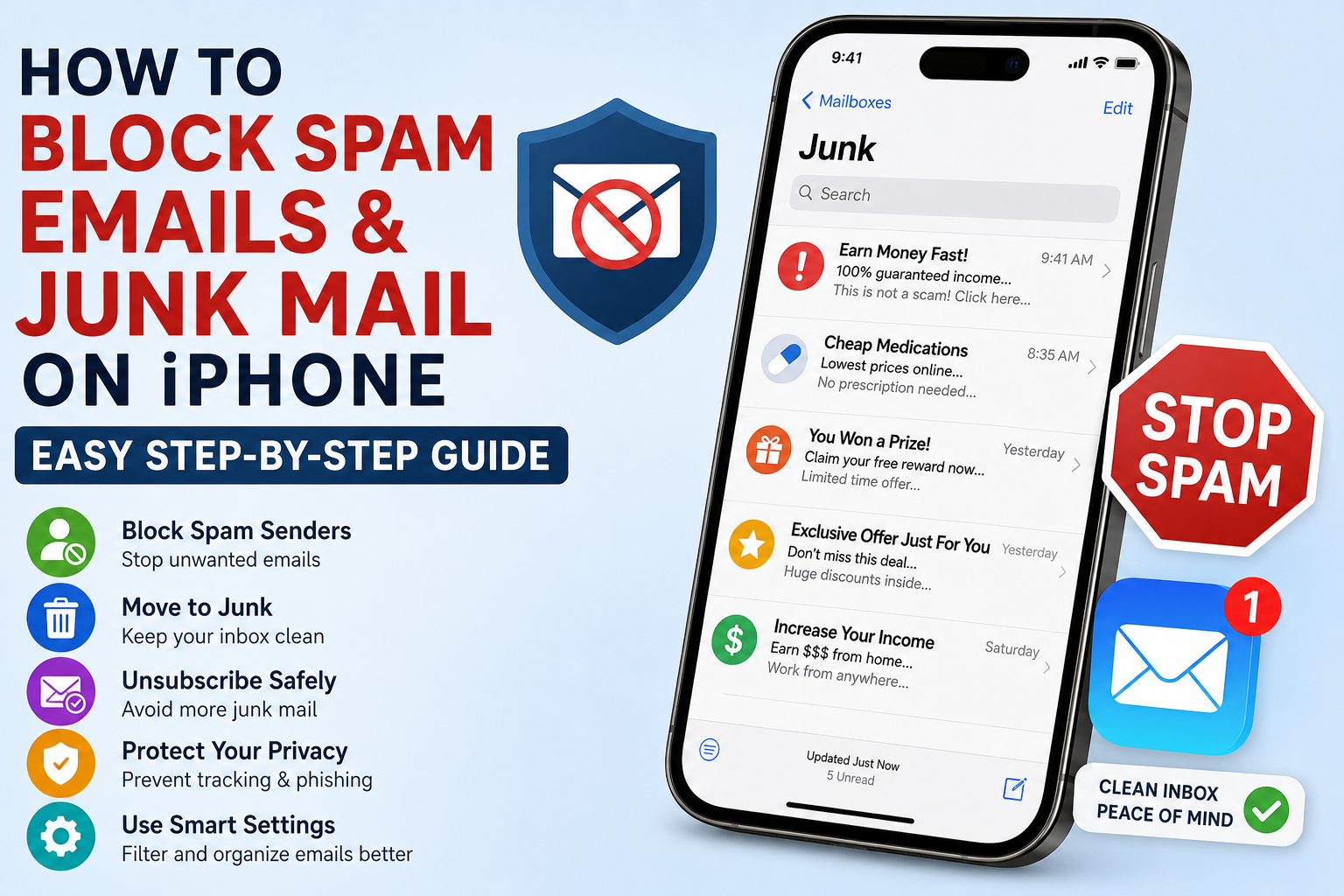
If you’re wondering how to block spam emails on iPhone, stop junk mail permanently, or reduce phishing emails, this guide covers the best methods step by step.
What Causes Spam Emails on iPhone?
Why You Suddenly Receive More Junk Mail
Most spam emails don’t come from a single person or company. Modern spam campaigns use automated systems that constantly rotate sender addresses and recycle stolen email databases.
Common sources of spam emails include:
- Data breaches from websites or apps
- Online shopping signups
- Publicly shared email addresses
- Marketing companies selling user data
- Fake giveaways or surveys
- Social media account leaks
Once your email address appears in these systems, it can spread rapidly across multiple spam networks. That’s why blocking one spam sender often doesn’t stop the flood of junk emails.
The best solution is combining spam filtering, blocking tools, privacy settings, and safer online habits.
Does iPhone Have a Built-In Spam Filter?
How Apple Mail Handles Spam Emails
Apple Mail includes basic spam filtering for iCloud Mail users, but it mainly depends on your email provider to detect junk messages before they appear in your inbox.
Different providers handle spam differently:
- Gmail filters spam using Google’s servers
- Outlook uses Microsoft’s spam protection
- Yahoo Mail has its own junk filtering system
- iCloud Mail uses Apple’s internal spam detection
This means your iPhone itself isn’t doing most of the filtering work. Instead, it shows emails that your provider allowed through.
Understanding this is important because stopping spam emails on iPhone requires improving both:
- Your email provider’s spam filtering
- Your iPhone’s handling of unwanted emails
Together, these layers can dramatically reduce junk mail.
How to Block Spam Emails on iPhone
Step-by-Step Guide to Blocking Unwanted Senders
Blocking repeat spam senders is one of the easiest ways to clean up your inbox. While it won’t stop every spam campaign, it helps reduce messages from persistent marketers or scammers.
Follow these steps to block spam emails on iPhone:
- Open the Mail app
- Select an email from the unwanted sender
- Tap the sender’s name
- Tap the email address again in the “From” section
- Choose Block this Contact
After blocking a sender, you can make sure their emails automatically go to Trash.
To move blocked emails directly to Trash:
- Open Settings
- Tap Apps
- Select Mail
- Tap Blocked Sender Options
- Choose Move to Trash
This prevents blocked emails from cluttering your inbox.
How to Stop Junk Mail in Apple Mail
Train Apple’s Spam Filter for Better Results
Apple’s junk detection system improves over time when you manually flag spam messages.
To report spam in Apple Mail:
- Swipe left on the suspicious email
- Tap More
- Select Move to Junk
This sends signals to Apple’s filtering system and helps future spam emails get automatically detected.
If you use Gmail or Outlook, you should also mark suspicious messages as spam inside those apps. Google and Microsoft use machine learning systems that improve filtering based on user reports.
The more consistently you flag junk mail, the cleaner your inbox becomes over time.
How to Unsubscribe From Marketing Emails on iPhone
Remove Legitimate Promotional Emails Safely
Not every unwanted email is dangerous. Many are simply marketing newsletters or promotional campaigns from companies you interacted with in the past.
If you recognize the sender, use the unsubscribe option.
How to unsubscribe from emails on iPhone:
- Open the promotional email
- Look for the Unsubscribe link at the bottom
- In Apple Mail, tap the unsubscribe banner when available
However, avoid clicking unsubscribe links in suspicious emails. Scammers sometimes use fake unsubscribe buttons to confirm your email is active.
If the email looks suspicious, it’s safer to delete or mark it as junk instead.
Enable Privacy Protection to Reduce Email Tracking
Stop Spammers From Tracking Your Activity
Many marketing emails contain invisible tracking pixels that notify senders when you open a message. Once scammers know an email account is active, they may target it with more spam.
Apple offers a built-in privacy feature to prevent this tracking.
To enable Protect Mail Activity:
- Open Settings
- Tap Apps
- Select Mail
- Choose Privacy Protection
- Turn on Protect Mail Activity
This hides your IP address and prevents senders from knowing whether you opened their emails.
It’s one of the best privacy features available for iPhone users.
What to Do If You Clicked a Suspicious Email Link
Protect Your Accounts Immediately
Accidentally clicking a spam email link doesn’t always infect your device, but entering passwords or downloading files can put your information at risk.
If you interacted with a suspicious email:
- Change your passwords immediately
- Enable two-factor authentication
- Review bank and online account activity
- Scan your device for suspicious apps
- Avoid downloading unknown attachments
Cybersecurity experts recommend updating passwords for important accounts like email, banking, Apple ID, and social media first.
Fast action can prevent identity theft and financial fraud.
Why Spam Emails Suddenly Increase on iPhone
Common Reasons Your Inbox Gets Flooded
A sudden rise in spam emails usually means your address has become exposed online.
This can happen because of:
- Data breaches
- App permissions
- Public forums or websites
- Email harvesting bots
- Marketing database sales
Once your email enters spam circulation, it may continue spreading across different campaigns for years.
That’s why prevention is just as important as blocking spam after it appears.
Use Hide My Email to Protect Your Inbox
Best iPhone Privacy Feature for Reducing Spam
Apple’s Hide My Email feature, available with iCloud+, is one of the most effective ways to reduce spam exposure.
Instead of sharing your real email address, Apple generates random disposable email aliases for websites and apps.
Benefits include:
- Protecting your real email address
- Reducing marketing spam
- Preventing data tracking
- Blocking companies from sharing your information
Messages still arrive in your inbox, but your primary email remains private.
Over time, this dramatically reduces spam and unwanted marketing emails.
Can Data Removal Services Reduce Spam Emails?
Remove Your Information From Data Broker Websites
Many spam campaigns rely on information collected from data brokers and online databases.
Data removal services help by:
- Finding websites storing your data
- Sending removal requests
- Monitoring future exposure
- Reducing online visibility
Although this won’t stop spam overnight, it can significantly reduce how often your email appears in marketing databases.
Combined with spam filtering and safer online habits, it creates a stronger long-term defense against junk mail.
Final Thoughts: The Best Way to Stop Spam Emails on iPhone
Smart Email Habits Make the Biggest Difference
There’s no perfect way to eliminate spam emails forever, but you can reduce them dramatically by using the right combination of tools and privacy settings.
The most effective methods include:
- Blocking repeat senders
- Reporting spam emails
- Using strong spam filters
- Enabling Protect Mail Activity
- Avoiding suspicious links
- Using Hide My Email
- Limiting where you share your address
Over time, these habits improve your inbox experience and reduce unwanted interruptions.
Spam emails may never disappear completely, but with the right setup, they no longer have to control your inbox.